GnuCash and ZUGFeRD
GnuCash is a powerful, free accounting software. However, anyone who wants to create ZUGFeRD or other electronic invoices from GnuCash will quickly encounter limitations.
The issue is becoming increasingly urgent: legal requirements for electronic invoicing are being introduced gradually. GnuCash users are therefore increasingly faced with the question: How can compliant electronic invoices be created from existing accounting data without having to switch from their familiar accounting software?
I have been using GnuCash for many years as the treasurer of a club, and I would not want to be without it. However, I do not need its invoicing functions for this purpose. Nevertheless, I wanted to find a solution to this particular problem.
eInvoiceBridge – the solution
This free command-line program (CLI) accesses GnuCash databases directly and extracts the required information. SQLite, PostgreSQL and MariaDB/MySQL databases are supported (the data is not stored in XML). eInvoiceBridge uses this information to generate electronic invoices in the formats mentioned above, optionally including automatic validation with the KoSIT Validator.
However, it is not quite as straightforward as it might initially sound. GnuCash does not readily allow all the information required for a standards-compliant electronic invoice to be entered.
- Addresses in particular: Problems may arise with addresses, especially international billing addresses. eInvoiceBridge can export all addresses to a CSV file, making it easier to check whether they have been detected correctly.
- Additional required information: For other information that is needed, definitions can be entered in the notes fields available for each customer and invoice.
- A configuration file is central to the setup. It contains the database connection settings, bank details and other options.
The software archive therefore includes not only the program but also a comprehensive manual and a document containing numerous examples. In this article, I will focus on the most important points and explain what matters when generating electronic invoices from GnuCash.
Warning! eInvoiceBridge is new software. Please carefully check all generated invoices before using them.
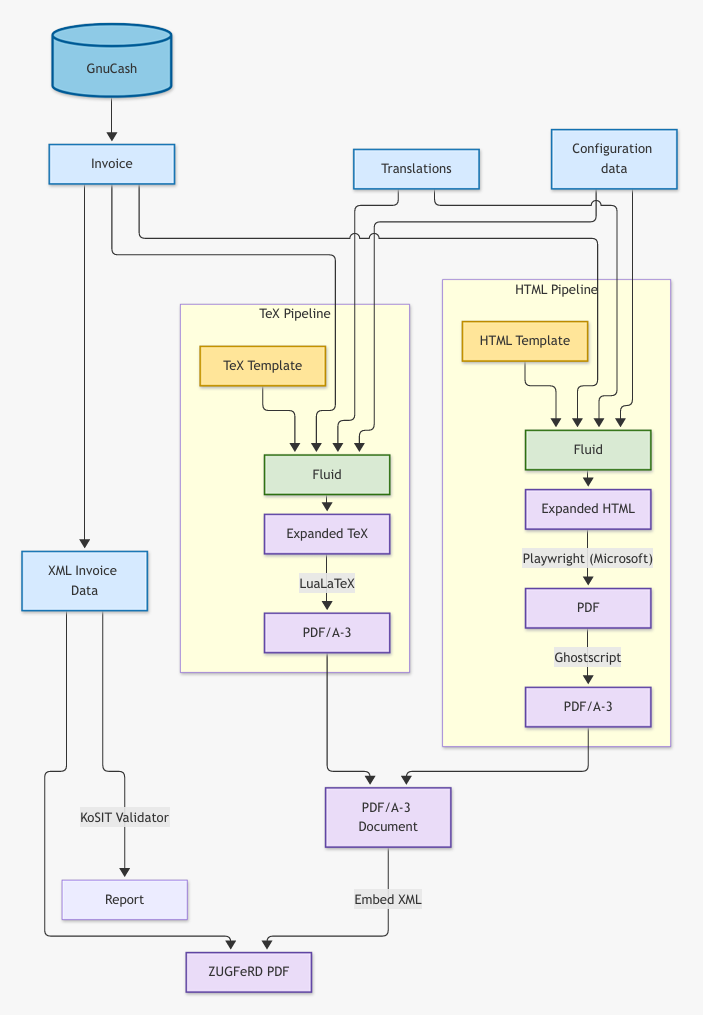
eInvoiceBridge – the architecture
The architecture differs fundamentally from that of ZUGFeRD-Composer. Instead of using existing invoice templates, for example from Word or Excel, eInvoiceBridge creates invoices entirely from scratch using customizable templates.
The following overview illustrates the process from the GnuCash data to the finished electronic invoice.
Enhancements and limitations
Enhancements
Even beyond electronic invoicing, eInvoiceBridge offers numerous ways to improve GnuCash invoices, particularly through its easily customizable templates.
Here is an example of the HTML output, which can be used, for instance, for sending invoices by email.
But there is more...
- Customizable invoice templates: HTML and TeX, with Fluid/Liquid as a powerful template engine.
- Individual design: Logos, background images and multipage invoices in the TeX template.
- Multilingual support: 23 European languages and flexible rules for selecting the invoice language.
- International invoicing: Different currencies, delivery addresses, references and reverse charge.
- Automatic validation: Validation of generated invoices using the KoSIT Validator.
GnuCash provides a text field called Action for invoice line items. In eInvoiceBridge, this field can be used in four different ways, including in combination.
- As a unit: Invoice line items with quantities require a unit. Available units are defined in a configuration file.
- As an image: The TeX template can specify the name of an image to display alongside the invoice line item.
- As a link: A URL entered in this field is attached to the item's description.
- As additional text: This text appears as Detail on the invoice.
The My Favorites example, which includes a little promotion for a business I know, uses all these options except Unit, as there is not enough space for it. The following configuration in the Action field produces the result shown in the image below.
text:=Very good friends of ours;link:=https://www.optiksehenswert.de/startseite.html;image:=myfavorites/sehenswert.png
Warning! The standardized electronic invoice formats do not provide corresponding fields for these enhancements. They affect the visual presentation of the invoice, not the structured invoice data.
Limitations
- GnuCash supports three types of discounts. Only discounts applied to net amounts are supported.
- Since eInvoiceBridge is being used with different GnuCash databases for the first time, further special cases or previously unknown issues may arise. I welcome any feedback on these.
The examples
Warning! GnuCash allows transactions and accounts to be organized in many different ways. The example database uses accounts for multiple currencies and tax-exempt transactions. These are example accounts that would probably not be used in quite this way in actual bookkeeping.
However, not all the following examples are entirely ordinary invoices. If you have not yet figured out my fondness for heavy metal and Ireland, you will certainly discover it here.
The best way to explore the examples is to start one of the two Spotify playlists featuring the songs referenced in the invoices and then take your time looking through the invoices.
Fans of Hitster will quickly notice that, in most cases, the invoice total corresponds to the year in which the respective song was released.
Quiz enthusiasts can try to identify the more than 30 bands hidden in the first song, "Metal Crüe", on the heavy metal playlist.
Heavy Metal Playlist
Irische Musik Playlist
Details über die Möglichkeiten in den Rechnungen finden Sie in der Hilfedatei Examples_de.pdf. Dort sind auch Links auf die entstandenen Beispiele enthalten.
Incidentally, all PDF invoices should be valid ZUGFeRD invoices. You can check this using online validators such as PortInvoice. PortInvoice is particularly helpful when digital invoices contain errors, as it provides considerably more information than standard validators.
The examples featuring billing addresses in different countries also take the applicable tax information into account. Depending on the circumstances, the EU transactions shown, for example to Finland, Austria and Sweden, use the codes AE (reverse charge) or K (tax-exempt intra-Community supply). The code G is used for the illustrated exports to non-EU countries.
Electronic invoices must contain the correct tax category code even when no VAT is charged.
| Country and link | Features demonstrated |
|---|---|
| Finland: finnisch / englisch | Reverse charge (EU cross-border transaction), discounts, references, order number from GnuCash, delivery address, paid invoice |
| Germany(1): deutsch/ englisch | Multiple VAT rates, discounts, multipage invoice, VAT code column, translated invoice line descriptions |
| Germany(2): englisch | Display of Details, credit note/cancellation with customized payment terms, translated invoice line descriptions |
| USA: englisch | Background image (AI-generated), currency: $ |
| Austria: deutsch / englisch | Translation of text within a single language variant (de-DE, de-AT) |
| Scotland englisch | Background image (Glencoe), regional language variant (en-GB-SCT), currency: £ |
| Sweden schwedisch / englisch | Background image (AI-generated), display of Details, reference |
| Ireland englisch | Background image (Cliffs of Moher), links to YouTube |
| England: englisch | Background image (AI-generated), currency: £, links to band websites, no logo |
| Worldwide englisch | Images in invoice line items, slightly larger font in the table |
| My Favorites deutsch / englisch | Background image (Ireland), details, images in invoice line items, links, multiple VAT rates, customized payment terms, gross prices |
Installation
A corresponding installation guide is available.
When installing MiKTeX, make sure that missing packages are installed automatically.
Once installation is complete and you have successfully run the example scripts, you can move on to your own GnuCash database.
- Save your GnuCash database as an SQLite database in an easily accessible directory.
- Enter the full file path in the
appsettings.jsonfile located in thebin\cli\configdirectory of the extracted eInvoiceBridge archive. It is best to use/as the path separator. The relevant section is called Connection. It also contains the reference to the example database. - Run the example scripts again and check the results in the corresponding subdirectory of
C:\ProgramData\eInvoiceBridge.Invoices. - Next, check the CSV file containing the exported addresses. It is generated by the
RunAddressCheck.cmdscript and is also located inC:\ProgramData\eInvoiceBridge.Invoices. Pay particular attention to the columns with uppercase headings.
Elektronische Rechnungen (ZUGFeRD, XRechnung, Factur-X) aus GnuCash.
And finally, as a little bonus, here is the example invoice for the USA – one that might not please all Americans...